

How to add online booking to your restaurant website
Two lines of code, or no code at all. Here is how to take bookings on the website you already have.
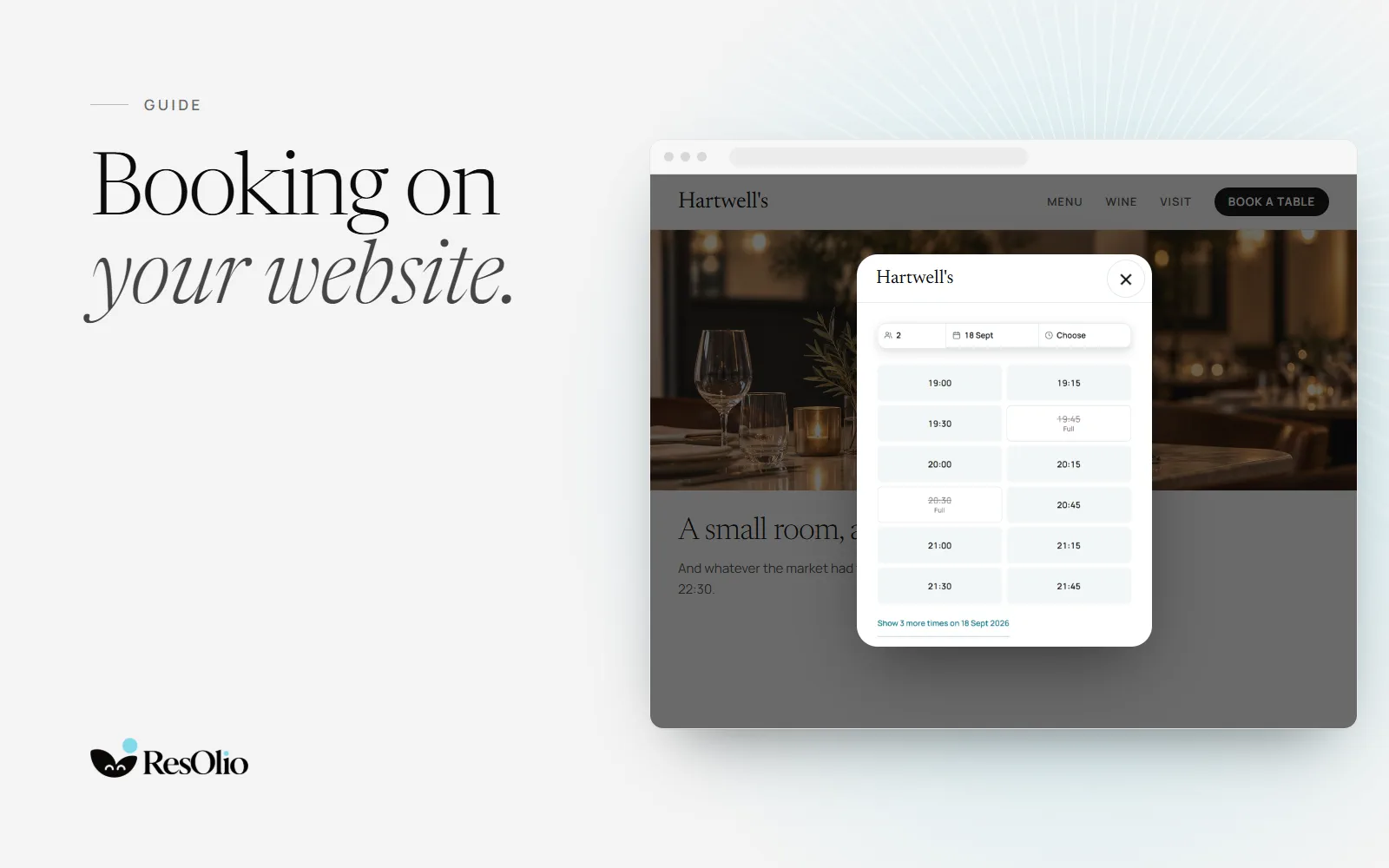
A booking form on your own website means guests book you directly: your name on the confirmation, and no list of other restaurants beside you. It is simpler to set up than it sounds.
What you need first
- One book for everything. Bookings from your website, the phone and the door should land in the same place, so no table is sold twice.
- Your tables and opening hours. The system should offer only the times you can really seat.
- A booking page. It is what your embed opens, and the link you share everywhere else.
- Your rules. How far ahead guests can book, the party sizes you take online, and until when they can cancel. Set them once, and the form keeps to them.
Two ways to add booking
A link to your booking page
The simplest way. Your booking page has its own address. Link to it from your website’s menu, your social profiles and your emails. Guests leave your site to book. If your website builder doesn’t accept code, the link is all you need.
An embed on your website
Paste a short piece of code into your website. Guests book in a window that opens over your page, without leaving it.
You don’t have to choose. Use the embed on your website, and the link everywhere else.
Add the embed in six steps
Create your account
Sign up in five short steps: your login, your restaurant, its opening hours, its floor map and your plan. The floor map is drawn for you. See create your account.
Go live
Your page takes bookings once your plan is active, with at least one table guests can book online and one service. The side menu then shows Page live with a green dot. See going live.
Copy the code
In Your page, open the Embed tab. Under Embed code, press Copy. You copy two lines: a link to your page, and the script that opens the form over your site.
Paste it into your website
In your website’s editor, add an embed or custom HTML block where booking should appear, and paste both lines. Not the text editor.
Publish and try it
Publish your website, open it and use the embed. Your booking form opens over the page.
Allow your website
For its first 14 days, the embed opens on any website, and the Embed tab lists each one it was seen on: allow yours. After that, it opens only on the websites you allow. You can also add yours in Settings › General, under Embed on other websites.
Why the embed never loses a booking
The first line is an ordinary link to your page. The script turns it into a window over your site. If the script is blocked, slow or missing, the embed still works as that link, and guests book on your page instead.
To check it before you publish, press Load the embed under Try it here on the same tab. It is the real embed, and nothing is booked unless you complete the form.
Check it on a phone
Many guests will open your site on a phone. In Your page, the preview shows your page and the window your embed opens, on a computer, a tablet or a phone. After you publish, try the embed on your own phone too.
Make it fit your website
- Its words. The embed comes labelled Book a table, in English. Change the words to your own, in your own language.
- Its style. The embed is a link on your website, so it takes your website’s style. Your web developer can style it like any other link.
- Something you already have. To make an existing link on your site open the form, your web developer copies the two attributes that start with data-bw- onto it, and keeps the script once on the page.
- Its language. The form opens in your website’s language, or the visitor’s browser language, when your page offers it. English, French and Arabic come with every plan.
- Its look. The form wears your page’s look. On Pro, your page carries your own colours, fonts and logo.
- In more than one place. Any number of links can share the one script, so the embed can sit in your header and again lower down.
If it doesn’t open
The Embed tab lists the usual causes under If something is wrong. The common ones:
- Your website isn’t allowed yet. After the first 14 days, the window opens only on websites you allow. Elsewhere, it shows a short message and a link to your page.
- Your plan isn’t active yet. Until it is, the window tells guests the restaurant isn’t taking bookings.
- Only one line was pasted, or it went into the text editor. Paste both lines into an embed or custom HTML block.
- You run several restaurants. Each has its own embed code: choose the restaurant first, then copy.
Share your page everywhere else
Your page’s address sits on the same tab, under Your page, with Copy. Put it wherever guests find you:
- Your social profiles.
- Your Google Business Profile. Google lets a business add a link for customers to make a reservation.
- Your email signature and newsletters.
- A QR code on your menu or in your window.
Every booking records where it came from, so Insights shows which of these brings you guests.
Make your page worth the click
Your page is where the link leads, and where the embed’s form comes from, so give it ten minutes. See edit your page.
- A tagline and a short description. One line under your name, and a few that say who you are.
- Photos of the room and the food.
- How to find you: your address, directions, phone number and website.
- House rules: what you ask of guests, agreed before they book.
Your page at your own address
Every page lives at an address like your-restaurant.resolio.app. On Pro and Enterprise, it can also live at an address you own, such as book.yourrestaurant.com. Once it is live, the embed code uses it, and an embed already on your site keeps working. Your page keeps its usual address the whole time, so links you already shared keep working. See your own domain.
What happens after a guest books
- The booking lands on the service screen of every tablet at once.
- The guest gets a confirmation email, with a private link to change or cancel within your rules.
- A reminder goes out before the night. From Starter, it asks the guest to confirm in one tap.
- From Starter, guests can also book with Olio, in a chat on your booking page. Olio is on your page only, not inside the embed.
What it costs
The booking page and the embed come with every plan. Free takes up to 50 bookings a month, with no card needed. Starter (€39 a month) takes up to 500, Plus (€59) up to 1,500, and Pro (€99) has no limit. There is no commission and no fee per cover, and guests never pay to book. See the plans.
Questions
Do I need a developer to add booking to my website?
No. If your website’s editor has an embed or custom HTML block, you paste two lines and publish. A developer helps only if you want a link you already have to open the form.
Will the embed slow my website down?
No. The script is small and loads the booking form only when a guest goes to use the embed. The form opens over your page, not inside your layout.
What if I don’t have a website?
Use your booking page on its own. It has your name, address, photos, hours and the same form, at its own address. Share the link on social media, on Google and on your menu.
Can guests book in French or Arabic?
Yes, on every plan. Your page and every email speak English, French and Arabic, and Arabic reads right to left. The embed opens in your website’s language when your page offers it.
Can my booking page use my own domain?
Yes, on Pro and Enterprise, for example book.yourrestaurant.com. The screen lists the records to add at your domain company, and checks them for you.
Sources
- Google Business Profile Help: Manage your local business links support.google.comread on
Something wrong? Tell us
Take bookings with no fee per cover
Set it up in five short steps, with no card.